System Label Manager Usage and Editing Guide
Last modified on:
Overview
The System Label Manager is a tool used to manage various categories and content associated with system labels. This includes managing emails, marketing setups, reports, reservations, and wildcards.
Prerequisites
- Access to the Admin tab in the system.
Steps
Location
- Click any Menu button.
- Click on the Admin tab.
- Select System Label Manager in the Administrative section.
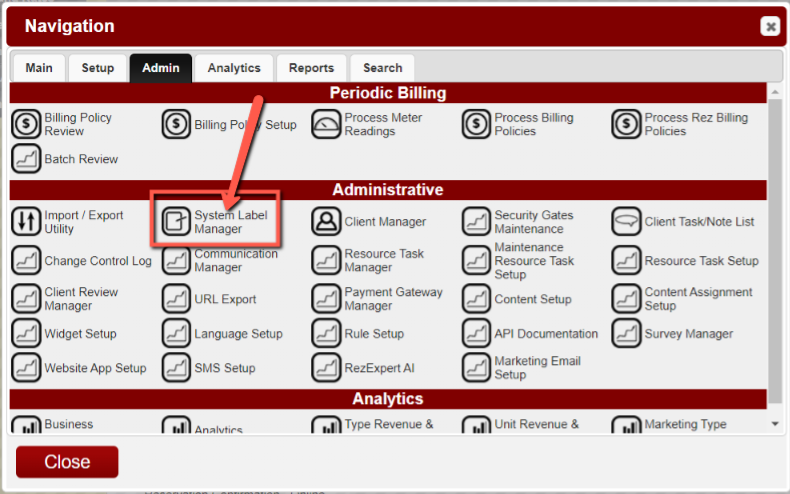
- This loads the System Label Manager Panel.
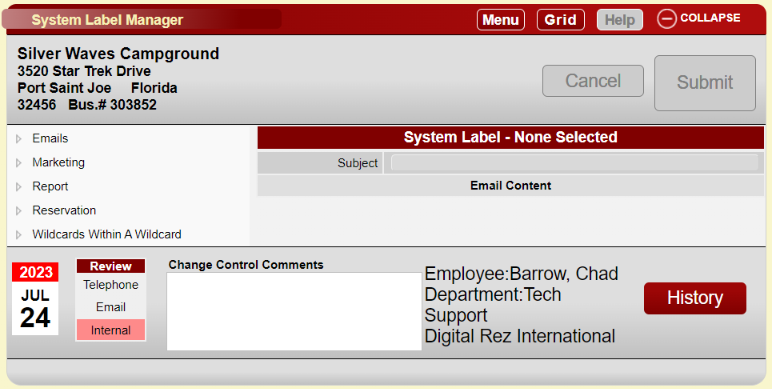
The Layout
- The left side of the manager holds the categories and content associated with each category.
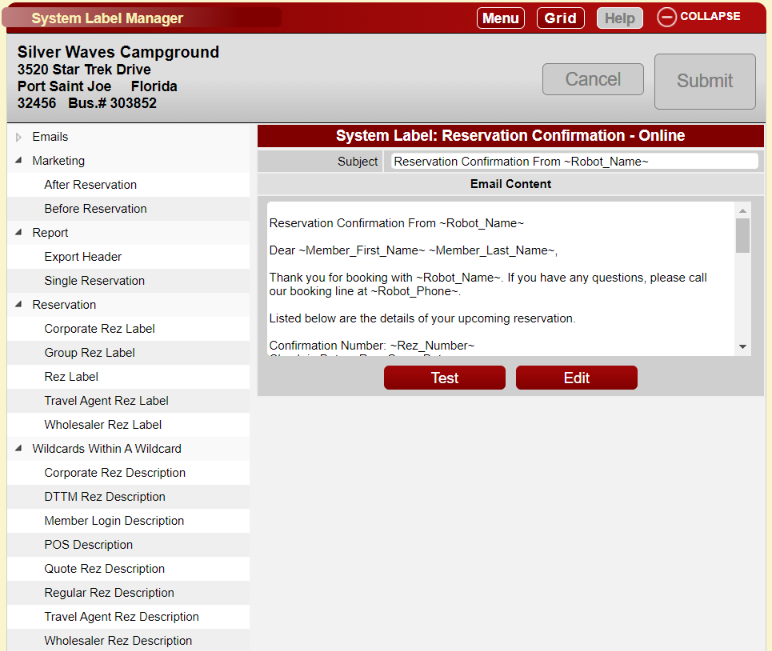
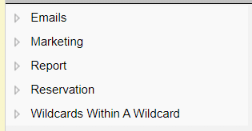
- The categories are:
- Emails: These are the emails sent out automatically to various types of clientele based on the type of reservation.
- Marketing: Leads to the Marketing Email Setup, where all marketing emails can be configured.
- Report: Leads to the Content Setup, where all default reports are stored and custom reports can be created.
- Reservation: Contains the content within the Rez Label wildcards for each type of reservation.
- Wildcards Within A Wildcard: Contains the content within the different description type wildcards.
Accessing the Reports
- To access a report, expand a category on the left and select a report to view.
- The report loads on the right side.
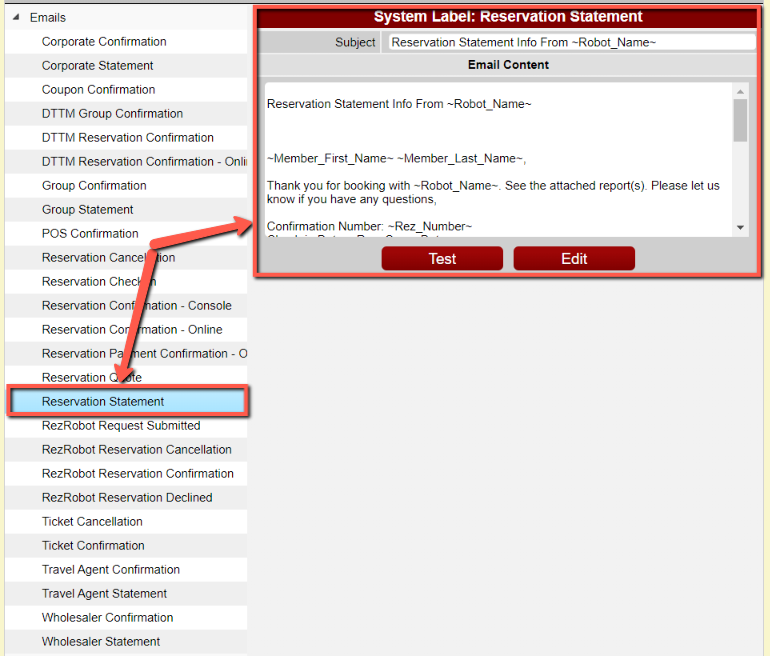
- Once loaded, the report can be edited to suit your needs. Note: Any edits saved will be what is presented to your customers.
Editing your Report
- To edit the report, click the Edit button.
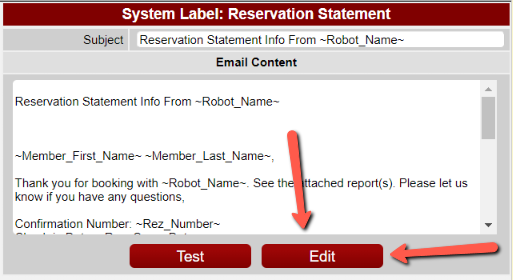
- This loads the editor.
- In the editor, you can type any content you wish to include. You can also include other wildcards to show relative information.
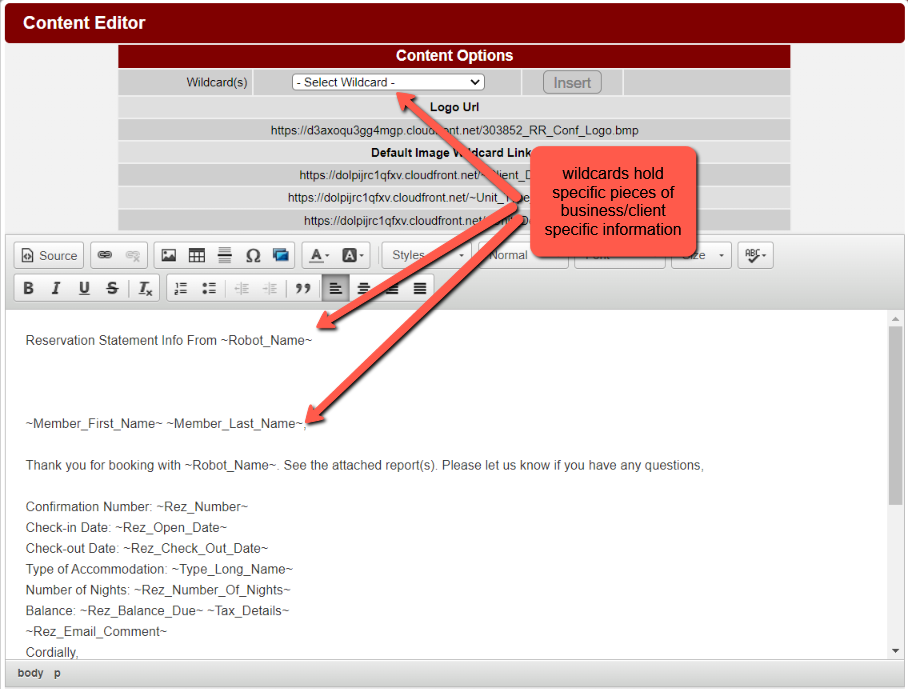
- Once editing is finished, click the Accept button.

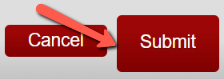
- Add your change control comments to keep a log of the activity.

- Click the Submit button to save all changes.
Testing Reports
- Your content can also be tested after editing to ensure everything looks as intended.
- Click the Test button (located next to the Edit).
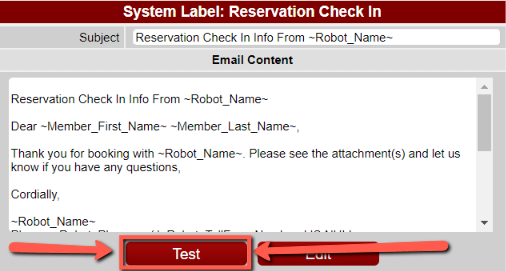
- A dialog pops up to enter testing criteria.
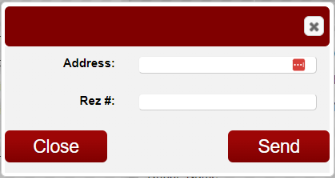
- Enter a registered reservation number and the email address you intend the test email to go to.
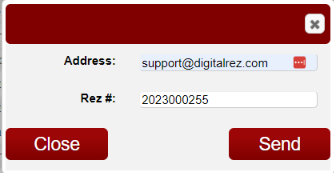
- Click Send.
- Check your email for the test email.
Troubleshooting
- Ensure you have the necessary permissions to access the Admin tab.
- Verify that the correct categories are expanded to view the desired reports.
- If the report does not load, check your internet connection and try again.