Vehicle Type Filter Setup and Usage
Last modified on:
Overview
The Vehicle Type Filter is a feature designed to allow users to control which vehicles are allowed on a Unit type. With the online booking portal, when the vehicle type is selected when searching for availability, this will filter available unit types which allows for that vehicle. This documentation will guide you through the setup and usage of this functionality.
Prerequisites
- Access to the Inventory Setup in the system.
- Access to the Resort Web Setup for enabling the filter online.
Steps
Location
To access the Vehicle Type Filter feature, navigate to the Inventory Setup:
- Click on the Menu button.
- Click on the Setup Tab.
- Select the Inventory Setup.
Enabling Vehicle for Unit Types
1. Select Unit Type
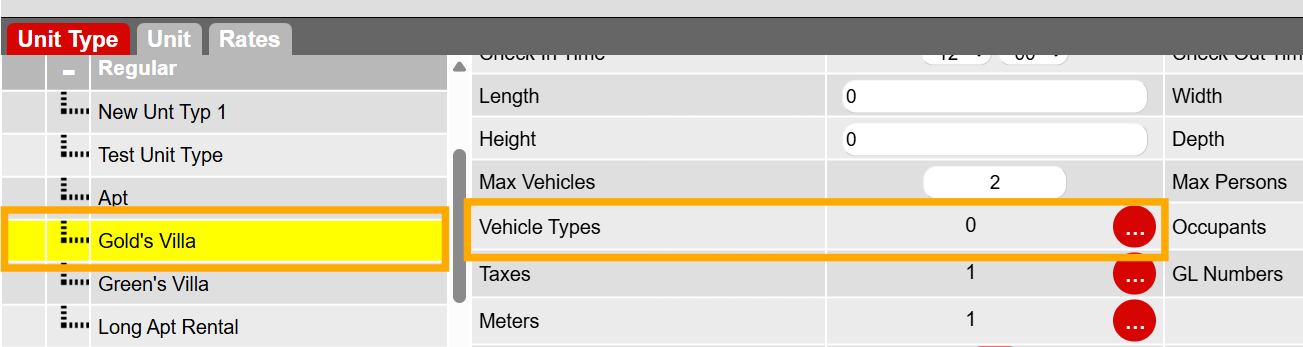
- Begin by selecting the unit type for which you want to configure vehicle filtering from the left.
2. Enable Desired Vehicle Types
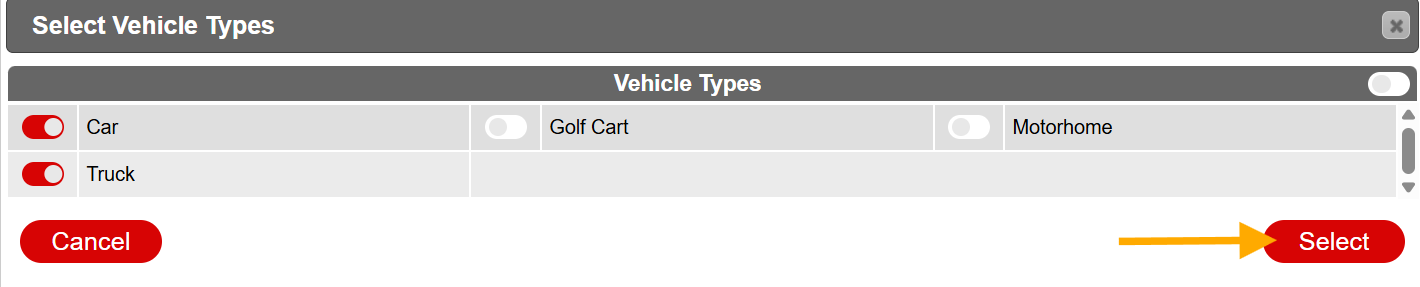
- Click on the Vehicle Types 3 dot button, check which vehicles are allowed for the unit type.
3. Save Changes
- After selecting the desired vehicles, click on Select and Submit buttons.
Enabling the Vehicle Type Filter - Online Portal
This is enabled from within the Resort Web:
- Navigate to the Resort Web Setup.
- Click on the Availability tab.
- Enable Vehicle Type for Rez - Regular Version 4.

Troubleshooting
- Ensure that you have the necessary permissions to access the Inventory Setup and Resort Web Setup.
- Verify that the correct unit type is selected before enabling vehicle types.
- If changes are not reflected, double-check that the Save Changes step was completed successfully.