Grace Period Booking Rule Setup
Last modified on:
Overview
The Grace Period rule allows for a set number of day(s) between reservations. This rule is ideal for Unit Types that require a day between reservations for staff to complete tasks such as full day cleaning, rest period of camping sites, cleaning/refueling Houseboats, etc.
Prerequisites
- Access to the Admin tab in the system.
- Permission to add and modify rules.
Steps
Location
- Click on a Menu button.
- Select the Admin tab.
- Click on Rule Setup.
Add New Rule
- Click Add.
- Enter the Name of the rule.
- Click on the Inventory Type dropdown and select Regular.
- Click on the Rule Type dropdown and select Grace Period.
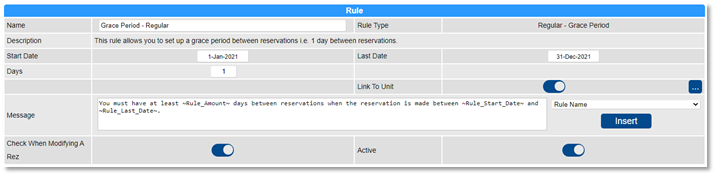
- Start Date: Select the first date that the rule will apply from.
- Last Date: Select the last date that the rule will apply to.
- Days: Enter the number of days that are required between reservations.
- Link to Unit:
- The rule can apply to selected Unit Type(s) and/or Unit(s).
- Click on the box to select the required Unit Type(s) and/or Unit(s).
- By default, the slider will be on. If the rule is for all Unit Types, untick the slider. - Message: Enter a custom message informing staff and online guests of the rule requirements. (Staff have the option to override the rule.)
- Check when Modifying a Rez: When enabled, the rule will trigger when reservation dates are adjusted.
- Active: Toggle the slider to make the rule active.
Troubleshooting
For additional help, refer to the Help Document.