Content Block Wildcard Setup Instructions
Last modified on:
Overview
A Content Block Wildcard Setup is a custom block of text formatted as a wildcard in emails. It automatically adds custom information specific to desired unit types. This setup can be used to include specific information such as features, facilities, and extra information about the unit type on the booking.
Prerequisites
- Access to the Admin tab in the system menu.
Steps
- Navigate to Content Block Wildcard Setup:
- Click on the Menu.
- Select the Admin tab.
- Under the Administrative tab, select Content Block Wildcard Setup. - Create a Content Block Wildcard Setup:
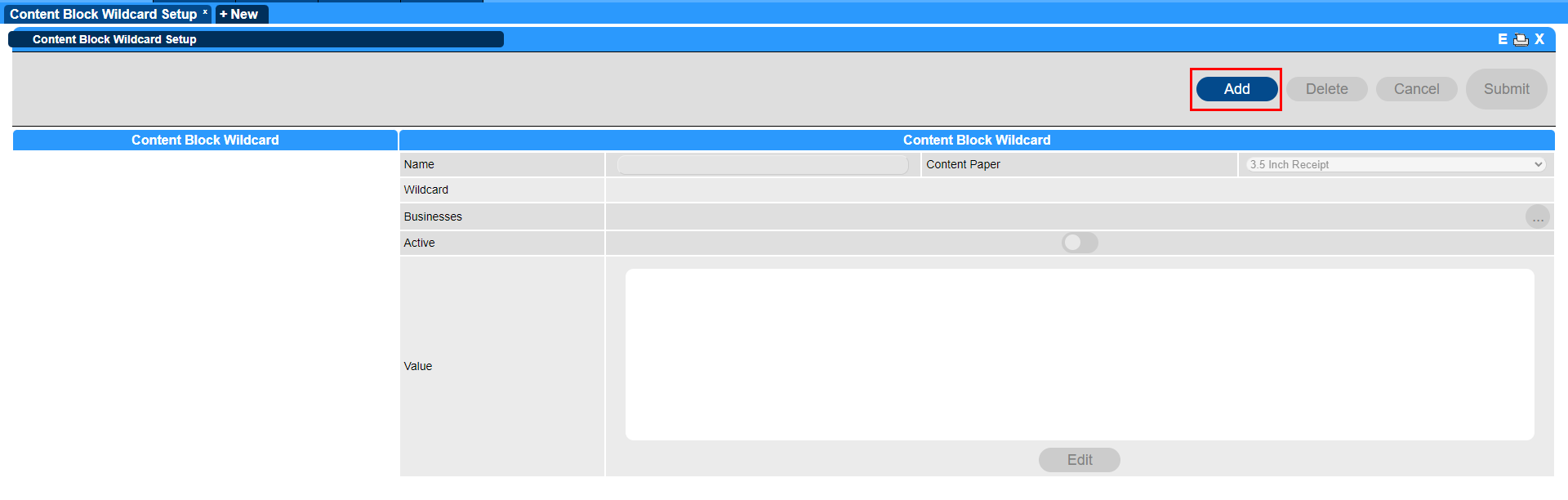
- Click the Add button within the Content Block Wildcard Setup.
- Configure the Setup:
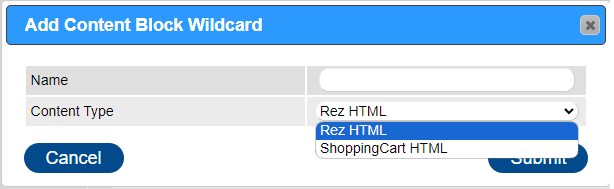
- Name: Enter the name of the Content Block Wildcard.
- Content Type: Choose between:
- Rez HTML for Regular bookings.
- Shopping cart HTML for Group Bookings.
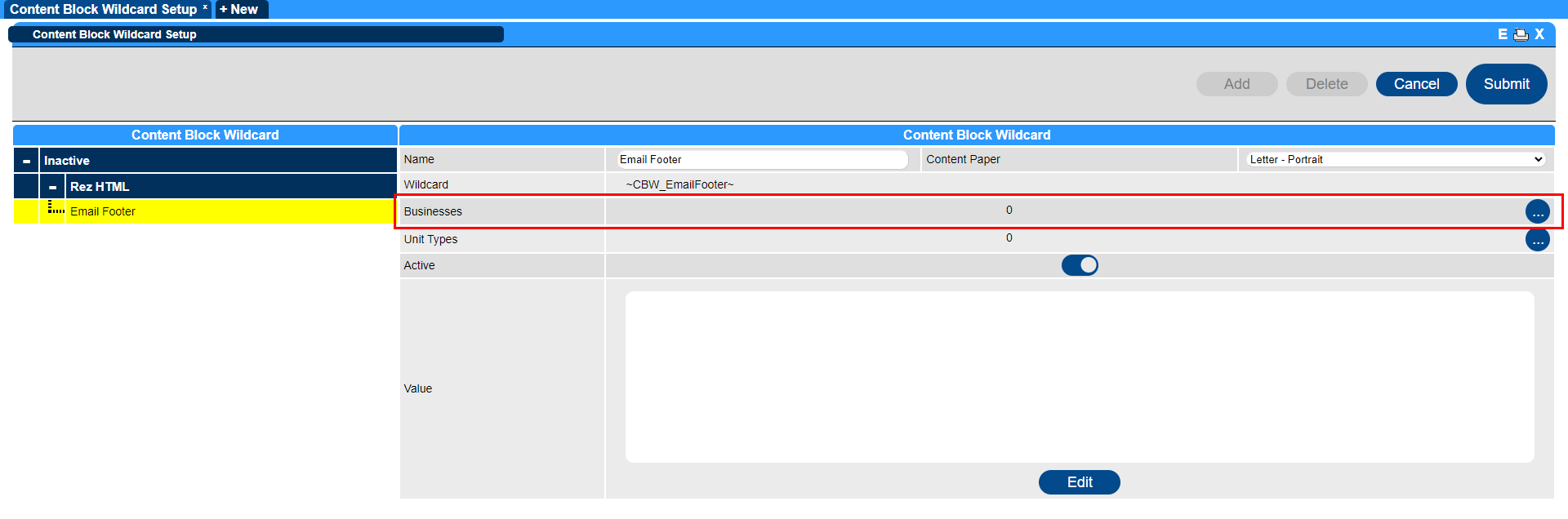
- Select Business:
- Choose your business by toggling the slider on.
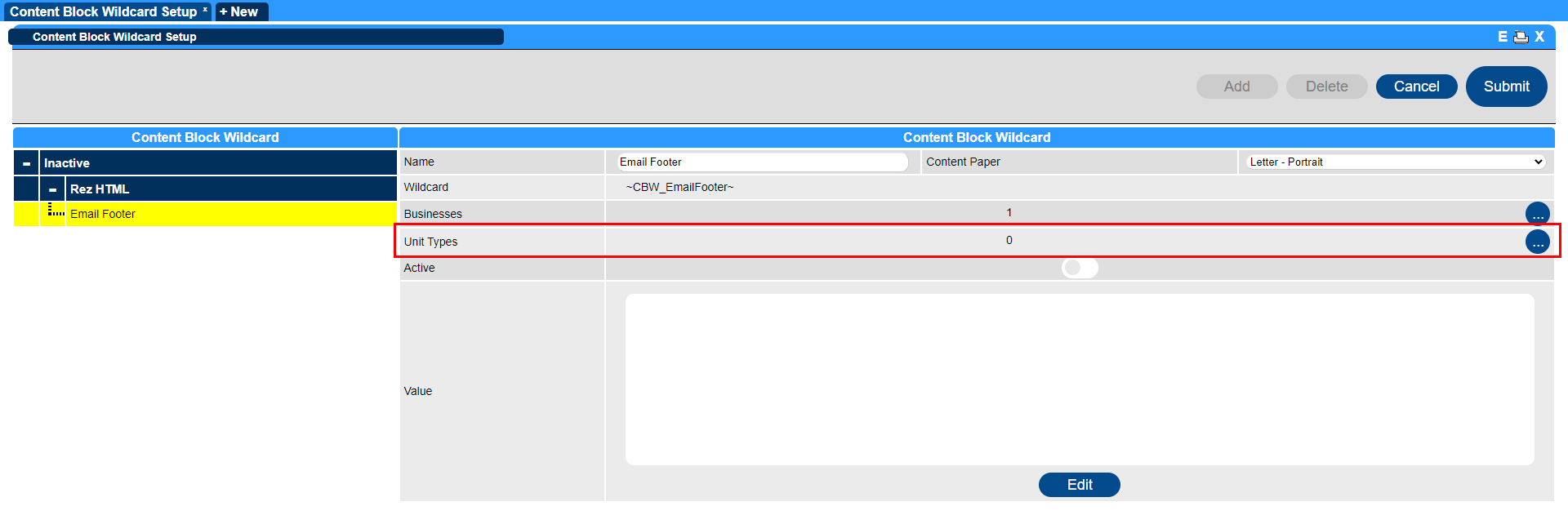
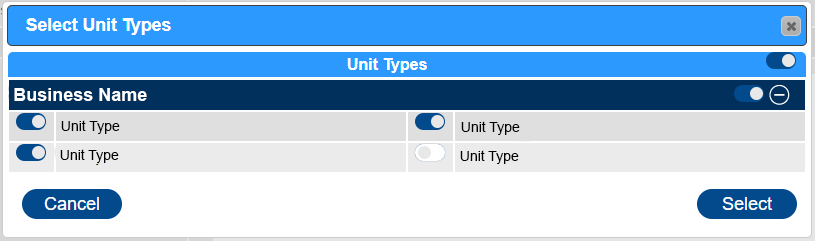
- Select Unit Types:
- Choose the unit types for which the Content Block Wildcard will apply by toggling the slider on.
- Add Description:
- Add a description to the Value section by clicking the Edit button. This text will appear when the Content Block Wildcard populates in the email body.
- Note: System Wildcards can be copied from Content Setup and inserted into the Content Block Wildcards content (e.g., PinCodes wildcard for security gate codes). - Activate and Save:
- Make the Content Block Wildcard active by toggling the active slider on.
- Save the setup by clicking the Submit button.
Troubleshooting
- Ensure that the Content Block Wildcard is active for it to display within Content Setup wildcard dropdowns.
- Verify that the correct unit types and business are selected to ensure the wildcard applies correctly.
- If the wildcard does not appear in emails, check that the description and content type are correctly configured.
