Custom Field Setup for Guest Folio Management
Last modified on:
Overview
Custom Field Setup allows you to configure and track client and reservation custom information within the Guest Folio. This information will display in a reservation’s Guest Folio to record unique information. Custom Fields can be of the following types:
- Text
- Numerical
- Drop down List
- Date
- Checkbox
- File Upload
Types of Fields
- System Fields: Contains the Client System fields that display in the Guest Folio and within the Booking Details of the online booking interface.
- Client Fields: Will retain on the Client File; these custom fields display on each of the client’s reservations.
- Reservation Fields: Will remain on the reservation only.
NOTE: Credit Card Details MUST not be stored within any Custom Field; Client or Reservation.
Prerequisites
To access the Custom Fields Setup:
- Click on a Menu button.
- Select the Setup tab.
- Select Custom Fields Setup within the Admin/Accounting section.
Steps
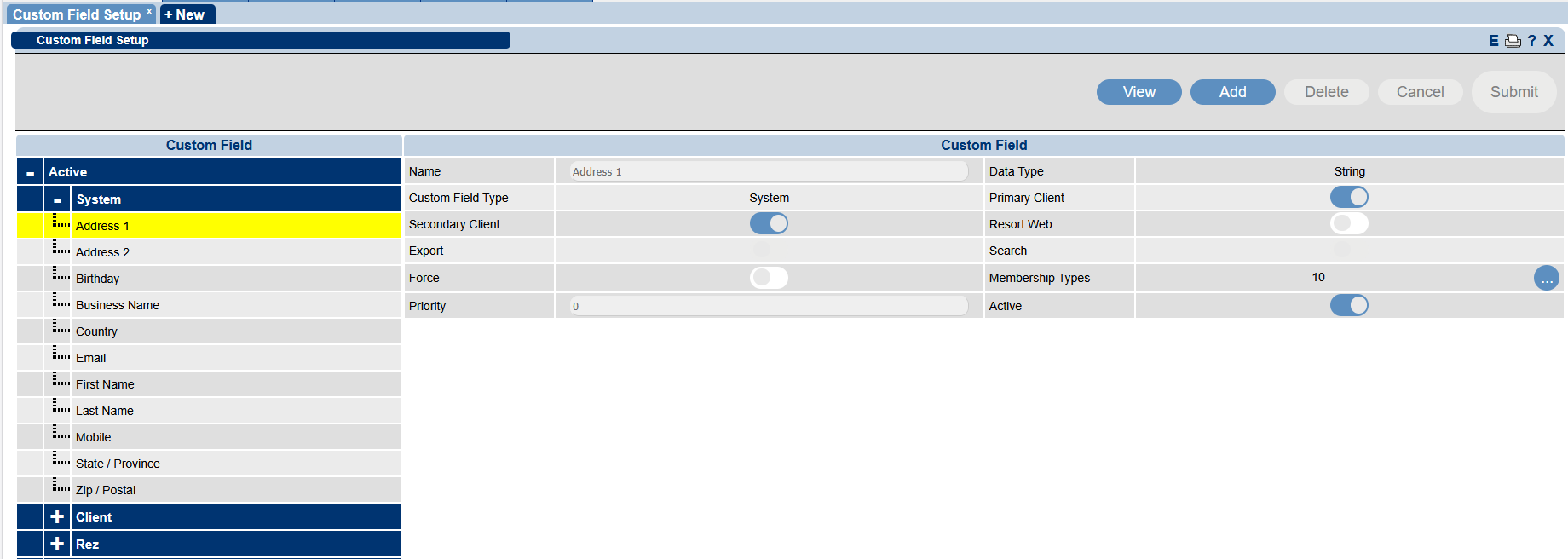
Configuring the System Client Fields
- Select the required field on the left.
- To remove from online bookings, untick the Resort Web slider.
- To remove from the Client record, untick the Active slider.
Creating Client or Rez Custom Field
- Click Add.
- Label: Enter the name of the Custom Field (e.g., Pet Name). Character limit: 30 characters.
- Field Type: Select the type of Custom Field – Client or Reservation.
- Data Type: Select the required data type for the field:
- Boolean: Tick box. Yes or No. (Use when only Yes or No is required).
- Date: Date Calendar field.
- Drop Down: Provides a Drop Down option selection. (Used to create a selectable list of options).
- Integer: An integer is a whole number (not a fraction) that can be positive, negative, or zero. Integers cannot have decimal places.
- Numeric: Allow numerical values with decimal places. Must be a positive number.
- String: Used to represent text rather than numbers. It is comprised of a set of characters that can also contain spaces and numbers. (Character limit of 50).
Custom Field Settings
- Primary Client: Enabled by default.
- Secondary Client: Enabled by default.
- Resort Web: Tick on if the field is required to display on the Online Booking interfaces.
- Export: Tick on if the field is available within the reservation export from the Arrivals/Departure panel.
- Search: Tick on to make the field available to be searched for.
- Force: Tick on to make entry into the field compulsory/mandatory for every reservation.
- Membership Types: Businesses with Memberships enabled can assign Custom Fields to selected Member Types.
- Priority: Order of appearance relative to the other custom fields.
- Active: Enable/Disable Custom Field.
Troubleshooting
- NOTE: Export and Search sliders will automatically be enabled and cannot be adjusted.
- Available System Fields: Address 1, Address 2, Birthday, Business Name, City, Company Name, Country, Email, Fax, First Name, Last Name, Mobile, Phone, State / Province, Zip / Postal.