End of Financial Year Report Procedures
Last modified on:
Overview
RezExpert Reports are available to help provide the key financial data for the business financial year/period. These reports should be printed or run on the 30th of June at the end of the business day. No further RezExpert transactions for the 30th of June are entered after the reports are printed.
Prerequisites
- Ensure no further transactions are entered after the reports are printed on the 30th of June.
Steps
Report Location
- To locate reports:
- Click on the Reports button from the Menu Bar.
- Alternatively, click on any Menu button and select the Reports tab to view reports.
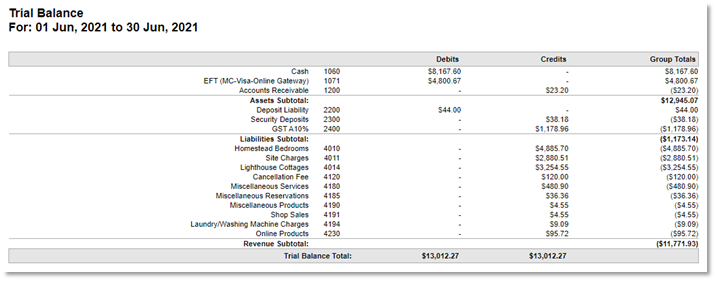
Trial Balance
- Location: Report Category: Income > Trial Balance
- Date Parameter: Set from 1st July last year to 30th June this year.
- Note: If your debits and credit columns don’t balance, a product is missing a GL Code. Call the Support desk for assistance.
- Example:
Deposit Activity
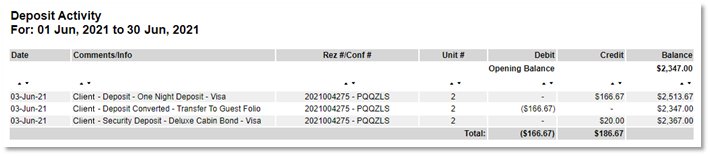
- Location: Report Category: Administration > Deposit Activity
- Description: Displays a list of deposit liability debit and credit amounts created for a specified date range with the current balance held. This report lists the opening deposits held.
- Date Parameter: Set from 30th June to 30th June.
- Example:
Account Receivable Balance
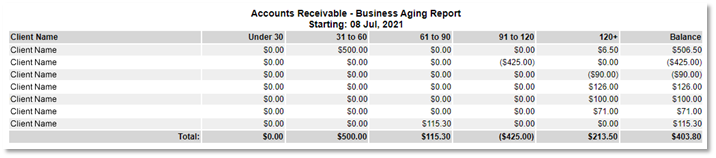
- Location: Report Category: Manager > Accounts Receivable – Business Aging Report. Alternatively, this report can also be printed within the Account Review/Aging panel.
- Description: Displays aging for Accounts Receivable by specified business/person and date, separated by Days Aged as follows: <30, 31 - 60, 61 - 90, 121 - 150, 151+ days. This report lists outstanding debtors or clients in credit (deposits held from a canceled booking).
- Date Parameter: Set to 30th June.
- Note: Your accountant will require this report.
- Example:
Rez List Guest Balance Sort By Unit Type
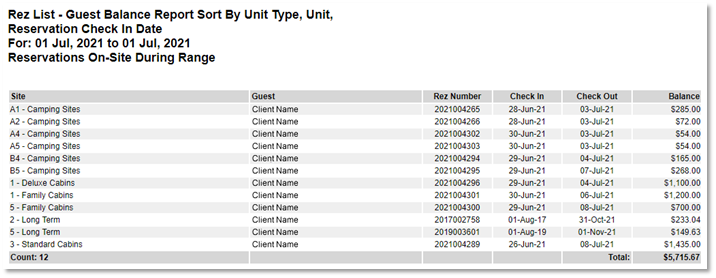
- Location: Report Category: Reservations > Rez List – Guest Balance Report Sort By Unit Type, Unit, Reservation Check In Date. Alternatively, Rez List reports can be located in the Arrivals/Departures Panel > General Tab > Print option.
- Description: Reports confirmed and pending reservations (short and long term) and the current balance.
- Search Parameters: Start Date = Today’s Date; End Date = use Today’s Date to report balances as of ‘Today’.
- Example:
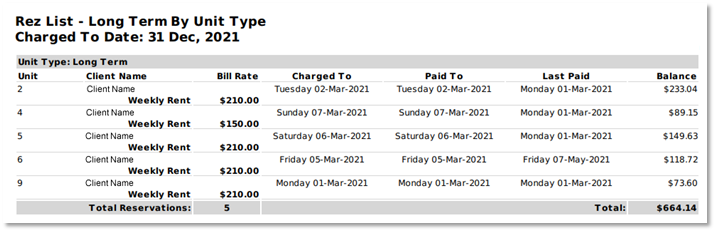
Rez List Long Term By Unit Type
- Location: Report Category: Reservations > Rez List – Long Term by Unit Type
- Description: Reports all long-term policy reservations balances, lists billing rate, charged to date, paid to date, and date of last payment and current balance.
- Date Parameter:
- Set to 30th June to display residents charged up to that date.
- Set to 31st December to view all residents.
- Example:
Troubleshooting
- If debits and credit columns in the Trial Balance do not balance, a product may be missing a GL Code. Contact the Support desk for assistance.
For further assistance, click here to print the Help Document.