Resolving Unresolved Payment Gateway Transactions
Last modified on:
Overview
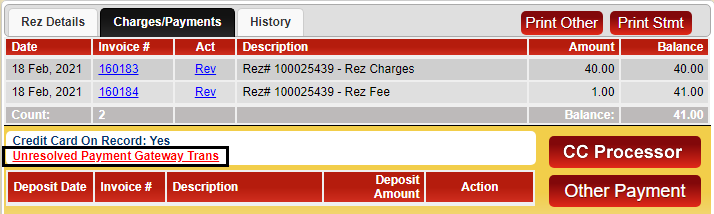
The "Unresolved Payment Gateway Trans." link appears on the Charges/Payments tab of a reservation when there is an issue processing a credit card payment or deposit.
Prerequisites
- Access to the Payment Gateway Payline Account
- Reservation confirmation number (Conf#)
Steps
Investigating the Payment
- Open the Payment Gateway Payline Account.
- Match the reservation Conf# with the Merchant number within the Payline Account.
- Search for the Merchant number to view the payment transaction:
- If the transaction displays "Accepted," the payment was successful.
- If the transaction displays "Declined," contact the customer and process the payment manually. - Once investigated, click the "Unresolved Payment Gateway Trans." link within the Guest Folio. This directs you to the Payment Gateway Manager panel with the unresolved transaction highlighted.
Payment Gateway Manager
- If Payment Successful:
- Click on the highlighted transaction.
- Click "Post" to post the payment into the Guest Folio.

- If Payment Unsuccessful:
- Click on the highlighted transaction.
- Click "Resolve" to mark the payment as investigated.

- After clicking "Post" or "Resolve," click the "Grid" button and open the Guest Folio to either check out or cancel the booking, depending on the scenario.
Troubleshooting
Issues
There are multiple reasons why a payment can be unsuccessful and become an "Unresolved Payment Gateway Trans." These include:
- The guest closed the Payment screen without entering details.
- The guest's internet connection dropped during payment processing.
- These scenarios will display a comment on the Guest Folio stating "Submitted for Payment," but will not show a "Payment Received" message.
- Credit card was declined.
- The "Cancel" button was pressed by a staff member during payment processing.
This flag indicates that the payment needs addressing, and the booking cannot be checked out or canceled without resolving the payment first.