Adjust Weekly Rates for Seasonal Changes
Last modified on:
Overview
By default, a seven-night reservation that spans a season change may use the weekly rate from the season in which the reservation begins.
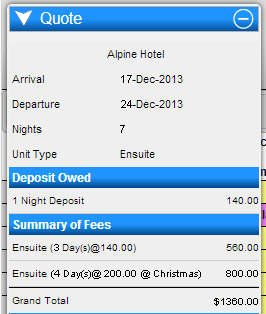
This procedure prevents the weekly rate from carrying across the season boundary. The reservation is instead charged using the applicable daily rate for each night. For example, a seven-night reservation could be charged as three nights at the Low Season daily rate and four nights at the High Season daily rate.
Prerequisites
- Access to Rates Setup.
- Permission to update rates.
- The start date of the new season.
- Daily rates configured for both seasons.
Steps
- From the grid, click Menu.
- Click the Setup tab.
- Under Pricing and Rates, select Rates Setup.
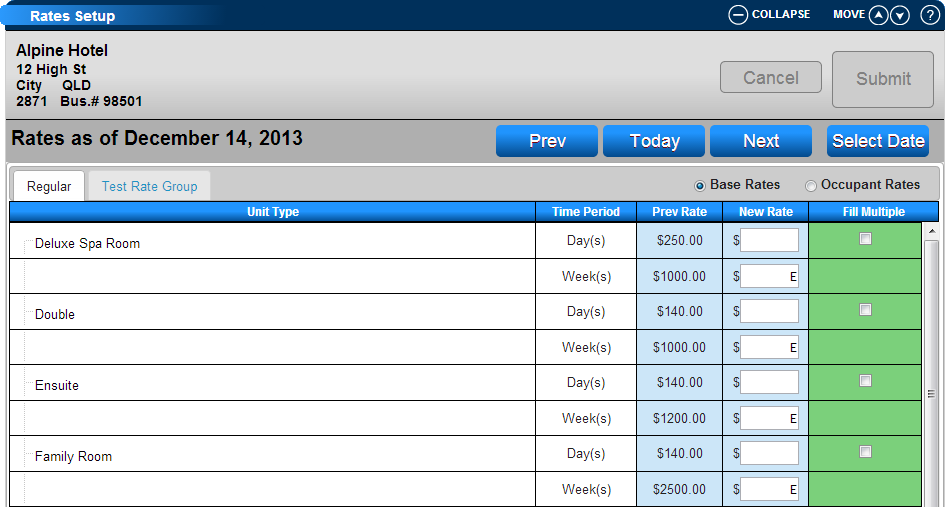
- Click Select Date.
- Select the date that is six days before the new season begins.
For example, if the new season begins on December 20, select December 14. - In the Week(s) row, enter E in the New Rate column.
- Click Submit to save the change.
- Click Select Date again.
- Select the first day of the new season.
- Confirm that the correct rates are configured for each applicable time period.
Expected Result
Reservations that span the season change are charged using the daily rates that apply to each night of the stay.
For example:
- Nights in the first season use that season's daily rate.
- Nights in the new season use the new season's daily rate.
- The weekly rate from the first season does not carry across the season boundary.
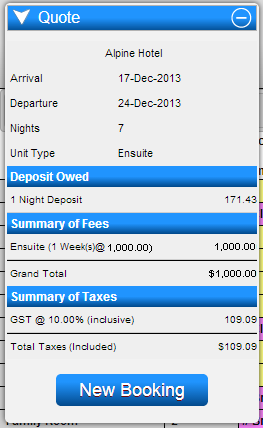
Before
The reservation is charged using one weekly rate from the first season.
After
The reservation is split into daily charges based on the applicable season.
Troubleshooting
- Verify that E was entered in the Week(s) row for the date six days before the season change.
- Confirm that the daily rates are configured for both seasons.
- Confirm that the new season begins on the expected date.
- If the reservation still uses the original weekly rate, review the rate setup for overlapping or conflicting rate rules.