Travel Agent Reservation Process and Management
Last modified on:
Overview
Travel Agent Reservations can be made directly onto the Grid. The configured commission percentage or flat fee will automatically be calculated according to the reservation created.
Prerequisites
- Access to the Travel Agent Business Record.
- Ability to search and select the Travel Agent name.
Steps
Travel Agent Record
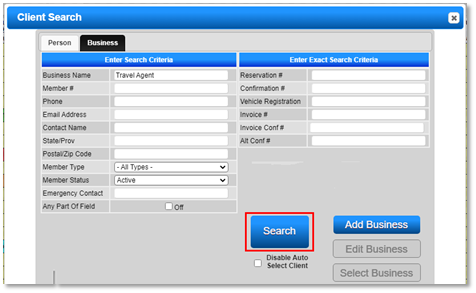
- Search for the Travel Agent Business Record.
- Click on the Search button and select the Business tab.
- Enter the Travel Agent name and click Search.
Making the Reservation
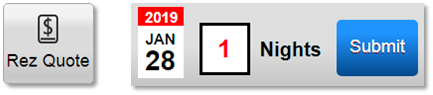
- Select the dates and required Unit Type.
- Press Rez Quote or Submit.
- Alternatively, use the Calendar Quote Tool:
- Enter the arrival date and number of nights.
- Press Submit. - Select the required Unit Type.
- Enter the number of occupants and press Submit.
Guest Folio
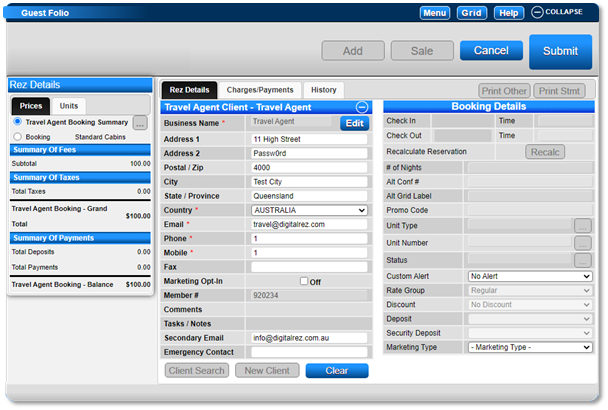
- Travel Agent Reservation Guest Folios display similarly to Group Reservations and Corporate Reservations.
- The Guest Folio will display two levels:
- Travel Agent Summary Level: Displays the Travel Agent Business Details.
- A level for each booking.
- Select each Booking within the Rez Details to enter each guest’s names and Occupancy Details.
- Enter any additional Reservation information required.
- Enter the Alternate Confirmation number given by the Travel Agent into the Alt Conf field, within Booking Details.
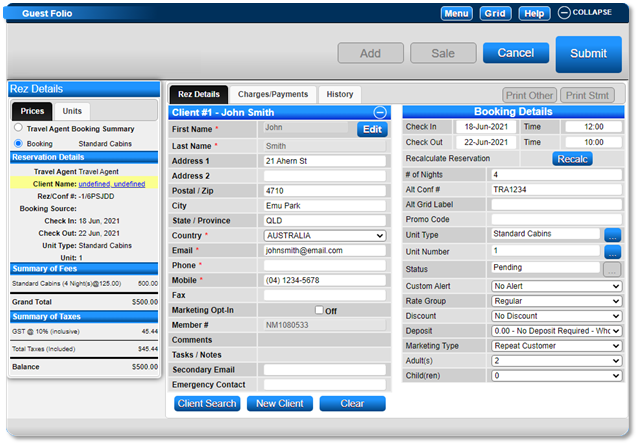
- Press Submit to finalize the bookings.
Charges/Payments Tab
- Click on the Charges/Payments tab.
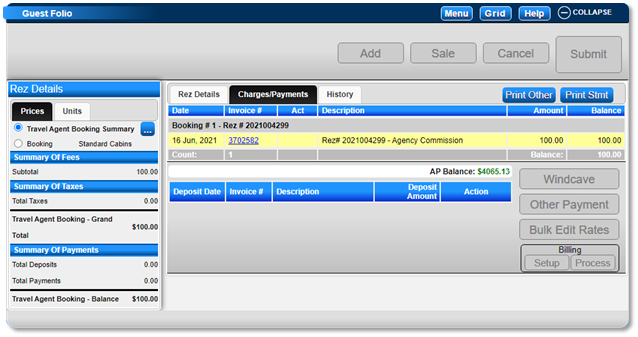
- The Charges/Payments tab will display the transactions for each booking.
- Travel Agent Summary Level will display the Commission amounts for the reservation. This amount will adjust with any changes to the reservation (i.e., occupant, Unit Type, and/or Date changes).
- Booking(s) Level(s) will display the Reservation Charges and Transactions for that booking, as per normal.
Checking Out Reservation
- When the reservation is due to check out, ensure all the reservation(s) balance(s) have been paid.
- Check out the reservation as per normal.
Commission Transfer
- Once the reservation has been checked out, the commission amount in the Travel Agent Summary Level will automatically transfer to the Travel Agent’s AP Account.
- To view the Travel Agent’s Account, click the Acct button in the Rez Details tab of the Travel Agent Summary Level.
Reservation History
- The Travel Agent’s reservations can be located and viewed within both the Travel Agent’s Business Record and the Clients’ Records Reservation History.
- Alternatively, search for the Travel Agent or the Client on the Availability Grid and click History on the Selected Client dropdown.
Troubleshooting
- Ensure the Travel Agent name is correctly entered in the search to locate the correct Business Record.
- Verify all reservation details are correctly entered before finalizing the booking.
- Check that all balances are paid before checking out the reservation.